Pictures, prompts or several views
AI 3D Model Generator: Choose the starting point for your next object
Turn a photo into a 3D mesh free, with no sign-up. Inspect it from any angle and export it as GLB, OBJ or STL. You can also start with multiple views or a prompt.
Create your model
3D preview
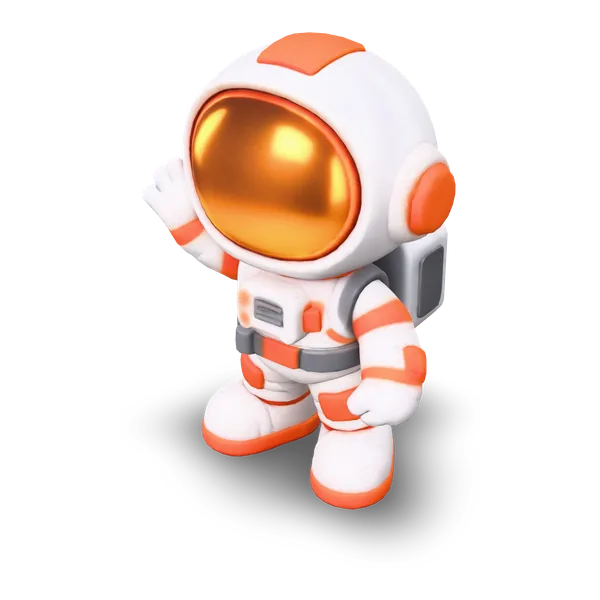
Sample result · TRELLIS
 Input image
A real TRELLIS example generated on Image to 3D AI. Inspect the shape, then create your own model from a supported input.
Use cases
An AI 3D model generator for ideas at different stages
Use an AI 3D model generator to give an idea a first visible form. Choose the input you already have, then judge the result against what your project needs next.
- TRELLIS
Use the AI 3D model generator to explore a prop before investing in final production work. A picture communicates an existing design, while a prompt can describe an object you have not drawn. Inspect the silhouette, hidden surfaces and materials, then take the mesh into your own asset-building process.
- Tripo H3.1
An AI 3D model generator can turn a character drawing or written shape idea into a volume you can examine from every side. Download STL when you want to continue preparing a physical object. Dimensions, wall thickness, connected parts, supports and watertightness still need separate checks in your printing workflow.
- TRELLIS
Bring a concept picture or several consistent views to the AI 3D model generator when a flat reference leaves the overall form difficult to discuss. Rotate the generated object with collaborators and identify what needs revision. Treat it as a visual concept, with engineering dimensions and manufacturing decisions handled separately.
- TRELLIS
Start a scene-planning object with a reference image or a short description, then place the downloaded mesh into your own editing environment. Compare its outline and proportions with the surrounding scene. The result is a starting asset for further work on topology, materials, lighting and any animation requirements.
Examples
AI 3D model generator results from real inputs
These examples identify whether a picture, prompt or set of views produced the model. Inspect the actual reference beside the result to decide which starting point is closest to your own project.
Input imageModels
Choose an AI 3D model generator with the inputs you need
Compare the input methods and mesh-detail choices currently offered by each model. The examples above show individual recorded results from different subjects and inputs; they do not establish a universal quality ranking.
| Model | Image | Text | Multi-Image | Mesh detail |
|---|---|---|---|---|
| TRELLIS | Yes | — | 2–8 views | Low · Standard · High |
| Rodin 2.5 Fast | Yes | Yes | 2–5 views | Low · Standard · High |
| Hunyuan 3D 3.1 Rapid | Yes | Yes | — | Standard only |
| Tripo H3.1 | Yes | Yes | 4 set views | Low · Standard · High |
| Hunyuan 3D 3.1 Pro | Yes | Yes | — | Low · Standard · High |
| Rodin 2.5 | Yes | Yes | 2–5 views | Low · Standard · High |
| Meshy 7.1 | Yes | Yes | 2–4 views | Low · Standard · High |
Inputs and mesh detail levels come from each model’s current settings in the workspace. Results vary with the picture you upload.
Choose your starting route
- One picture
- Use an existing visual design as the main reference
- Written idea
- Choose a text-capable model when you have no picture
- Several views
- Provide consistent angles of one object within the model’s limits
- Model choice
- 7 currently available models with different supported settings
- Delivery
- Preview and export GLB, OBJ or STL for the next editing step
- Quote
- Review the selected model and options before generating
Features
Give your AI 3D model generator the right kind of reference
The useful question is what information you have about the object. An AI 3D model generator offers different ways to provide that information, with model-specific settings and a shared preview.
Begin with an object you can already show
A clear picture gives the AI 3D model generator a visible silhouette, surface appearance and recognizable parts to interpret. Keep one subject fully in frame and avoid references where important details are hidden by a busy background. A single view leaves the back and underside uncertain, so examine those surfaces in the generated result.
 Input image

Inspect an AI-generated object from several sides
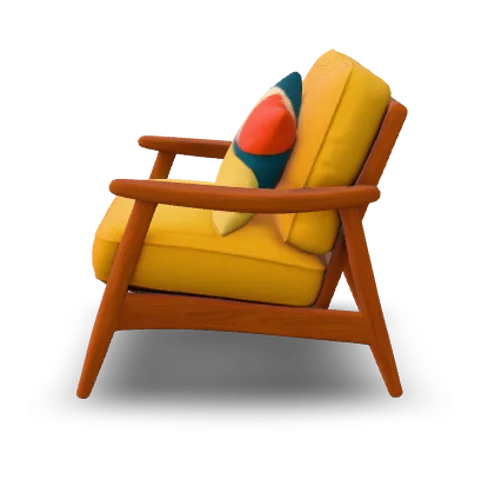
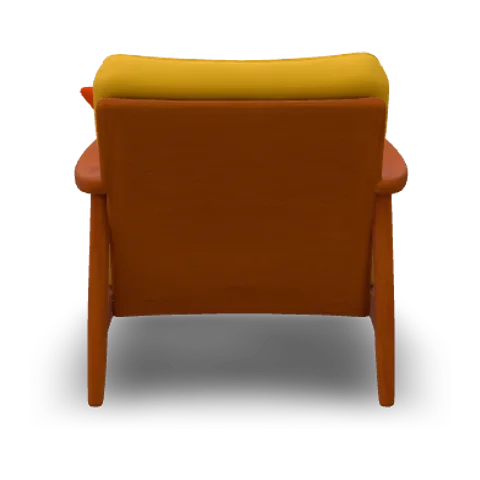
An AI 3D model generator produces surfaces beyond the reference or description you supplied. Compare front, side and back views of the finished mesh to check whether its shape remains recognizable around the object. These output views help reveal inferred proportions and missing parts. Keep the original input beside your review, then decide whether to refine the reference, try another model or edit the downloaded result.

Choose settings for the result you will inspect
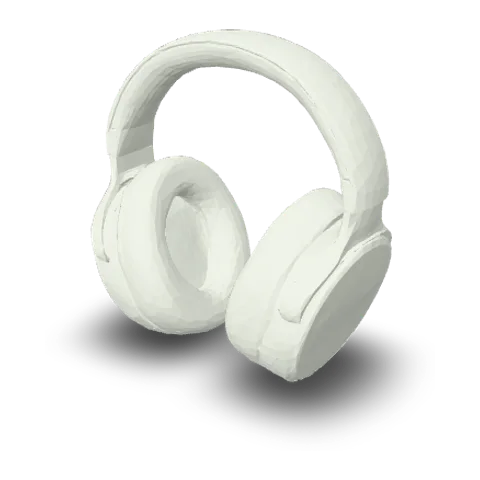
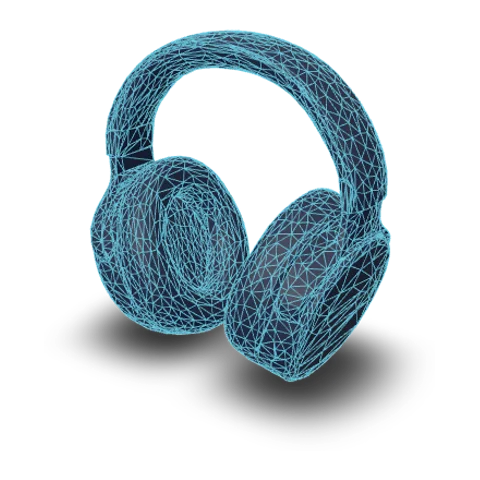
The AI 3D model generator shows the texture and mesh-detail options offered by the selected model. These controls affect different parts of the result: texture describes the surface, while the mesh supplies its shape. Rotate the preview and compare textured, solid and wireframe views before deciding whether the object is ready for your next editing step.

Download a model for the tools you use next
Select a delivery format after you have inspected the geometry. GLB packages a model for compatible viewers and editors, OBJ may need its material and texture companions, and STL contains the uncolored shape. File export does not automatically finish game optimization, engineering checks or print preparation; those requirements depend on the destination and the generated mesh.
- glbWeb and games
- objEditing tools
- stl3D printing
How it works
How to use the AI 3D model generator with your own starting material
Choose the reference you have, review a compatible model and inspect the output. The AI 3D model generator keeps your inputs, options and preview together throughout that process.
- Choose your input

Choose pictures or a written description
Open the input tab that matches your material in the AI 3D model generator. Upload one clear picture, prepare matching views of an object, or describe its form in words. Use a displayed example to understand the input without automatically starting a new task.
- TRELLISFREE
- Rodin 2.5 FastPRO
- Hunyuan 3D 3.1 RapidPRO
- Tripo H3.1PRO
- Hunyuan 3D 3.1 ProPRO
- Rodin 2.5PRO
- Meshy 7.1PRO
Review the model and its current quote
The AI 3D model generator lists models compatible with your selected input. Check the available texture and detail options, upload requirements and credit quote. Start generation only when the input is complete and you have confirmed the combination you want to use.
- GLBOBJSTL
Inspect and take the mesh into your workflow
Turn the completed object to inspect its sides, back and underside. Compare the geometry with the reference, then choose GLB, OBJ or STL for download. Perform any sizing, material adjustment, topology cleanup or print checks in the software used for your next step.
More generators
More AI 3D generators
Use this AI 3D model generator as a starting point, then explore dedicated inputs, export formats and individual model pages to match another creative task.
Stories
AI 3D Model Generator Stories
Creators used an AI 3D model generator to explore props, product concepts and decorative objects, then compared the resulting forms from more than one angle.
I used the AI 3D model generator with a hover-bike picture and examined the body, seat and lower surfaces in the preview. Rotating the mesh made the hidden side easier to discuss than the original view alone. I downloaded the result and kept a short list of design details that still needed attention.
FAQ
AI 3D model generator questions
Understand the inputs, model choices and downloadable files before using the AI 3D model generator for your next object.
- Three input routes
- GLB · OBJ · STL
- Model-specific quote
The AI 3D model generator creates a three-dimensional mesh from a supported picture, written prompt or set of views. You can rotate the result in the browser and export a model file, rather than receiving only a rendered image.
Start with the AI 3D model generator and the reference you have
Choose a picture, several matching views or a written description in the AI 3D model generator. Review the model and quote, generate your object, then rotate and download the mesh for the next stage of your project.