A picture in, a viewable model out
Image to GLB: Turn a picture into an object you can move around
Turn a reference picture into a textured 3D model free, with no sign-up. Rotate the mesh to check its shape and materials, then download it as GLB.
Create your model
3D preview
Sample result · TRELLIS
 Input image
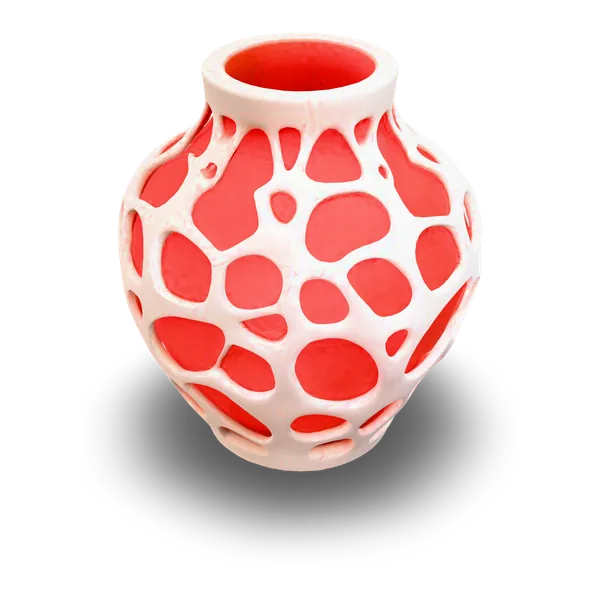
A real TRELLIS example generated on Image to 3D AI. Inspect the shape, then create your own model from a supported input.
Use cases
Use image to GLB to take your idea further
An image to GLB workflow provides a rotatable asset for viewing and further editing. Choose a subject, inspect the generated model and decide how it fits your next creative task.
- TRELLIS
Create an image to GLB model of a prop or imagined object to explore its silhouette in a scene. Import the downloaded asset into your editing workflow and check geometry, materials and scale. Treat it as a draft that may need topology work, cleanup and optimization before use in a finished game.
- TRELLIS
Use an image to GLB asset as a single-file handoff for a website or interactive model viewer you build. Open the download in the target viewer to check its materials, scale and loading behavior before integration. This workspace generates the asset; publishing and configuring the website remain part of your own project.
- TRELLIS
An image to GLB model lets you discuss a product concept from several angles instead of presenting only one picture. Inspect the proportions and inferred surfaces, then continue editing where the result differs from your intent. Use measured design data when the project requires exact dimensions or a verified match to a physical object.
- TRELLIS
Bring a downloadable object into your own scene-building tools to explore composition and set dressing. A GLB can carry the mesh and its appearance together, making the initial import easier to manage. Review material interpretation, hidden surfaces and the scale relationships needed for the visual you are creating.
Examples
Image to GLB models you can rotate
Explore actual results from pictures, text prompts and multiple views, each with its source references and model name. These samples have validated platform GLB delivery. Rotate each result to inspect its silhouette, surface appearance and inferred hidden sides before trying your own input.
Input imageFeatures
Explore an image to GLB model as geometry and appearance
Image to GLB generation gives you an object to inspect and download. Keep the input clear, examine the generated surfaces and choose export settings that fit your intended next step.
Create a shape you can inspect from more than one angle
Image to GLB AI interprets the pictured subject as a three-dimensional form. The process generates geometry rather than embedding your original image on a flat panel. Give it a recognizable object and a readable outline, then rotate the result to see how the model inferred depth and surfaces that the reference could not show.
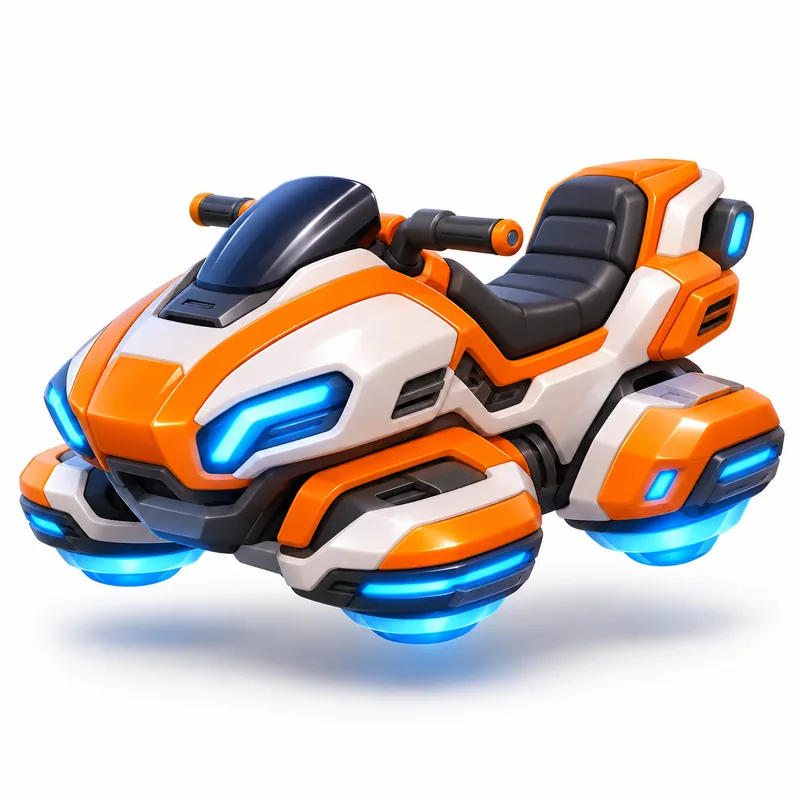 Input image
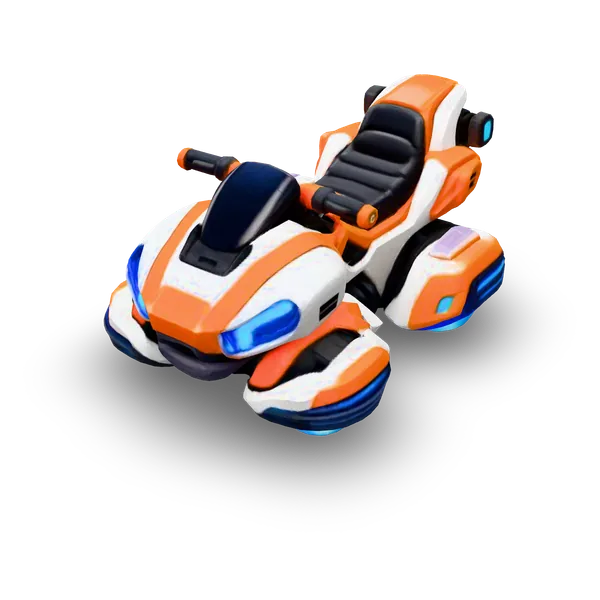
Check the generated model around every side
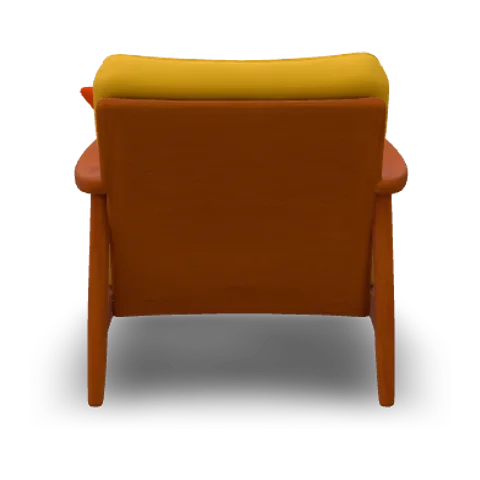
An image to GLB result is a three-dimensional object, so inspect more than its front cover. The front, side and back views here come from the generated mesh and help reveal its overall shape, material interpretation and inferred surfaces. Compare them with the original picture, then rotate the interactive result to inspect other angles before downloading GLB for your next viewer, engine or editor.
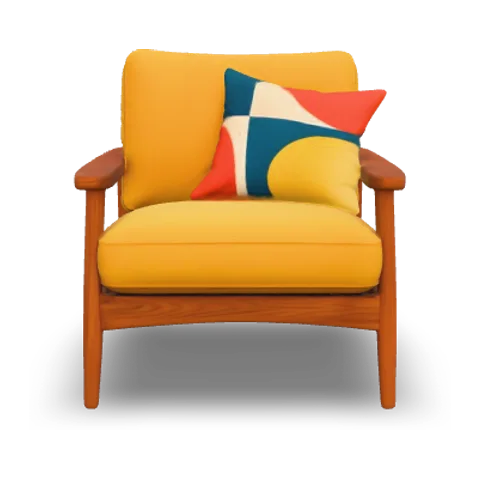
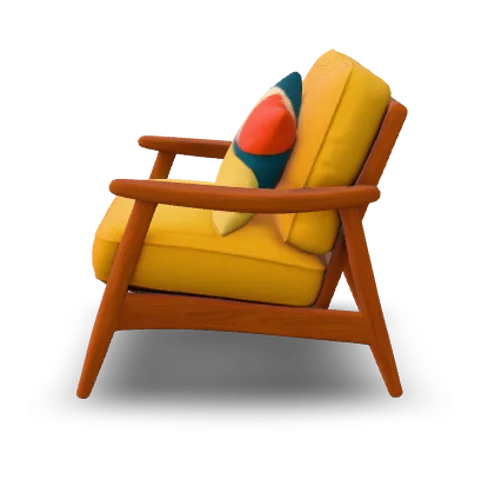
Separate the material impression from the underlying mesh
Review an image to GLB model in textured, solid and wireframe views where available. The textured view shows surface appearance, while solid and wireframe make it easier to examine the generated volume. Inspect small details, the back and the underside before exporting, then continue any geometry or material adjustments in the application you use next.
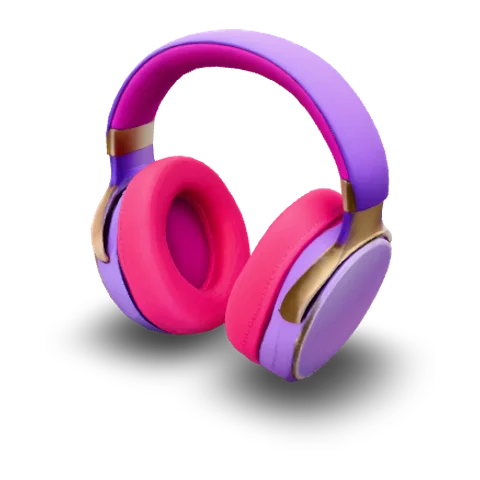
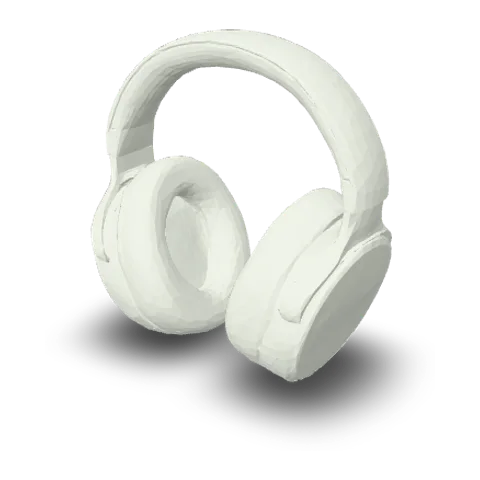
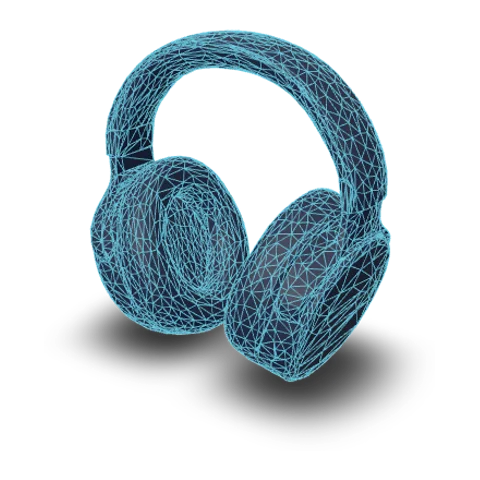
Download a packaged GLB with a clear source path
GLB bundles supported geometry, materials and textures into one binary glTF file. A result already delivered as GLB can be downloaded in that format; an OBJ-source result is converted in the browser using standard materials and textures up to 2048 pixels. Check the downloaded appearance in your target software, particularly when its material rendering differs from this preview.
- glbWeb and games
- objEditing tools
- stl3D printing
How it works
How image to GLB generation works from reference picture to download
Use image to GLB generation to move from a clear picture to an inspectable object, then check the downloaded file in the application where you plan to use it.
- Upload a reference picture

Choose a clear subject reference
Upload a supported picture of the object you want to generate. An image to GLB model starts from what is visible in that reference, so keep the subject recognizable and its outline easy to read. Review the selected model’s input requirements before moving on to its generation settings.
- TRELLISFREE
- Rodin 2.5 FastPRO
- Hunyuan 3D 3.1 RapidPRO
- Tripo H3.1PRO
- Hunyuan 3D 3.1 ProPRO
- Rodin 2.5PRO
- Meshy 7.1PRO
Generate and examine the object
Choose the available texture and mesh-detail options, review the quote and press Generate when ready. Inspect the image to GLB result with the rotation controls. Compare its shape and material appearance from several sides rather than judging only the first view.
- GLBOBJSTL
Download GLB and verify the import
Leave GLB selected for download, then open the file in your preferred compatible viewer or editor. Confirm that the geometry and expected resources load correctly and check the appearance in that application. Continue resizing, cleanup or material work according to what your project needs.
More generators
More AI 3D generators
Continue from image to GLB with a different input, explore geometry-only or editable delivery pages, or compare the models available for your next asset.
Stories
Image to Glb Stories
Camera concepts, floating islands and scene props anchor these image to GLB stories, with creators describing the shape and surface details they examined.
I used image to GLB with the instant-camera reference and inspected the colored body from every side. Downloading one model file gave me a concrete asset to keep with my web-scene study. The lens and base made the volume easy to assess, and I noted the inferred back rather than assuming it matched an unseen photograph.
FAQ
Image to GLB questions
Learn what image to GLB AI creates, how textures are handled and what to check when you open the download in another application.
- A rotatable object
- Binary glTF delivery
- Preview before download
This image to GLB workspace generates an object mesh from your picture and offers a GLB download. Upload a supported reference, choose a model and inspect the result. The file contains generated three-dimensional geometry rather than only a screenshot of the preview.
Make an image to GLB model you can inspect from every side
Upload your reference, choose a model and generate an image to GLB asset. Review its shape and appearance, download the file and continue editing or integrating it in the software that fits your project.