Original material
Existing model · New surface
AI Retexture 3D Model: Give an existing 3D model a different surface
Give a GLB, OBJ or STL a new finish with a material description or reference image. Rotate the before-and-after examples to see the surface change. Export your result as GLB.
Examples
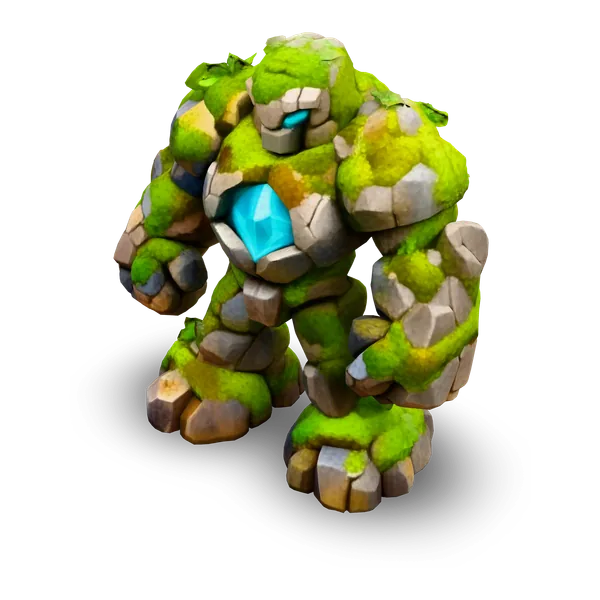
GLB retexture examples before and after
Open the original and retextured models from matching angles. Check the surface treatment, then look at the silhouette and joins for any unintended differences.
Text prompt
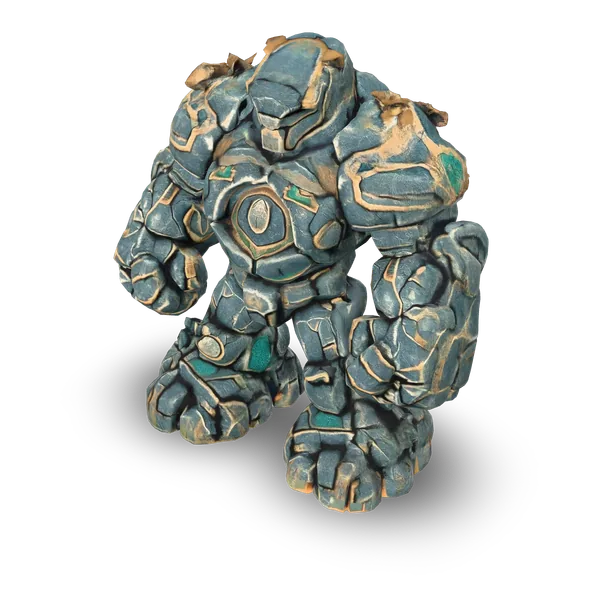
Weathered dark basalt over the entire stone golem, restrained turquoise mineral veins confined to existing cracks, and a warm oxidized bronze patina on the established plates. Preserve the silhouette, joints, holes, shape and existing fine details. Keep the face readable. No added objects, lettering or particles.
New material
Original material
Use cases
Retexture a 3D model for a different look
Use AI Retexture 3D Model to explore different surfaces on props, products and concept models. Start from the shape you want to keep and guide the treatment with text or a material image.
- TRELLIS
Use AI Retexture 3D Model to test worn stone or aged metal on a game prop. Rotate the result to inspect recesses, edge trim and joints, then bring the variant that suits the scene into your editor.
- TRELLIS
Bring a product model into AI Retexture 3D Model to explore a different color or finish. Use a material swatch under even light and compare the new surface with the original when reviewing the product concept.
- TRELLIS
Try a ceramic glaze or weathered finish on a collectible with AI Retexture 3D Model. Use the preview to examine the surface around raised details and the base, then choose a version to share in a concept review.
- Hunyuan 3D 3.1 Rapid
Try another upholstery or finish on a furniture mesh for a room concept. Look at the material changes from front and side, and compare seams and edges with the original before you place the model in the room.
Features
Change 3D materials with text or a reference image
AI Retexture 3D Model lets you explore a different finish on an existing shape. Text gives you a way to describe separate materials, while a visual reference can show color and grain that are difficult to express in words.
Describe the material you want
A prompt in AI Retexture 3D Model can name different finishes for the parts of one object, such as matte basalt for a body and brushed bronze for its existing trim. That lets you develop a stronger material contrast on a prop while keeping its recognizable form.
Weathered dark basalt over the entire stone golem, restrained turquoise mineral veins confined to existing cracks, and a warm oxidized bronze patina on the established plates. Preserve the silhouette, joints, holes, shape and existing fine details. Keep the face readable. No added objects, lettering or particles.
Show the surface you have in mind
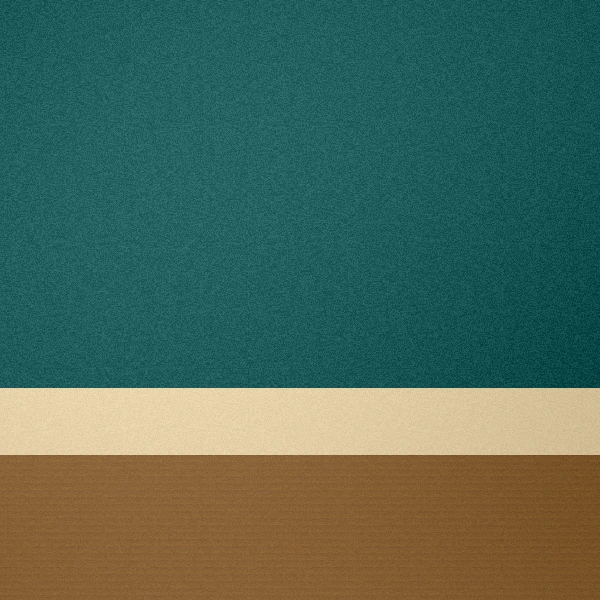
A close-up or swatch in AI Retexture 3D Model can communicate a color range, grain, mottling or wear that is hard to put into a prompt. A clear sample makes it easier to explore a finish across the curved surfaces and recesses of a prop rather than judging the material on a flat swatch alone.
See where a new finish changes the reading of a shape
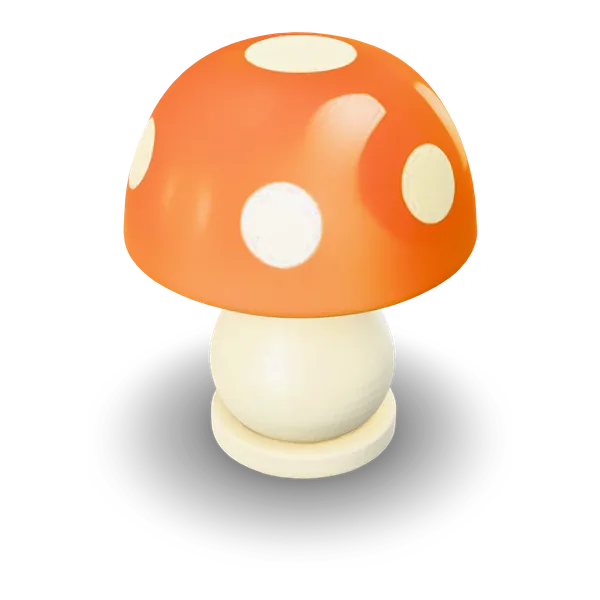
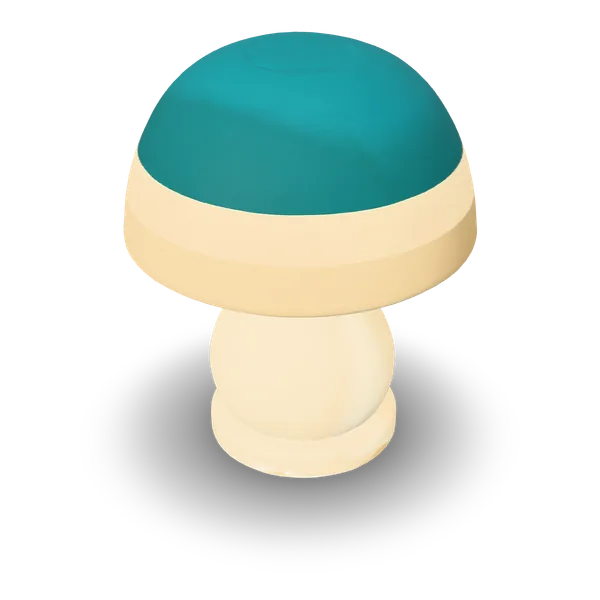
Color and contrast can make a seam look deeper or bring a quiet edge into view. The original and retextured previews let you compare those changes without guessing from separate camera angles. If dimensions, mesh details or UVs matter for the next edit, compare those properties in your editor.
Carry the new surface into a compatible editor
A GLB from AI Retexture 3D Model carries the mesh and its new surface together for further material work. A textured Wavefront OBJ travels as a ZIP with its materials and images so they can stay together on import. STL carries geometry alone for an editing or slicing workflow focused on shape.
- GLB2K textures
- OBJMaterials and texture files
- STLGeometry only
How it works
How to retexture a 3D model
Start with a GLB, OBJ or STL in AI Retexture 3D Model. Guide Meshy 6 Retexture with text or an image, then inspect and download the result with its new 2K surface.
- Add an existing model
Import a GLB, OBJ or STL
Import one model into AI Retexture 3D Model. Select any matching MTL and PNG or JPEG textures with your OBJ, or put them in one ZIP. The selected files, unpacked ZIP and prepared GLB each have a 20 MiB limit. Check the original in the local preview.
- Text promptBasalt and bronze
- Reference imageJPEG or PNG
Choose one style source
In AI Retexture 3D Model, enter up to 600 characters describing the material, or select a JPEG or PNG reference up to 10 MiB. Check the workspace quote and select Retexture model. The prepared model and your text prompt or reference image are sent through fal for Meshy 6 Retexture to process.
Original material New material - GLB
- OBJ
- STL
Inspect and download
Rotate the finished model and compare the new surface with the original at matching angles. Download the GLB to keep its materials with the mesh, or choose OBJ or geometry-only STL from the viewer for your next tool.
More generators
Need a 3D model to start from?
Create a GLB from a picture, multiple views or a text description, then bring the model into this workspace.
Stories
AI Retexture 3D Model Stories
Creator stories inspired by the before-and-after material examples shown here.
In AI Retexture 3D Model, I gave the stone figure a written basalt and bronze brief. I turned the result back to the angle of the original so I could see how the new colors read around the chest and knees. I put those two views on my material board and finally had a direction I liked.
Celeste Moran
FAQ
AI Retexture 3D Model FAQ
What you can upload for a 3D model retexture, how to guide the new material and which file to download.
- Text or reference image
- GLB, OBJ or STL
- 2K texture
AI retexturing uses a text description or an image to give an existing 3D model a new surface. Use it to try a different color, finish or material on a model you already have.
Retexture your existing 3D model
Use AI Retexture 3D Model to change the surface of a GLB, OBJ or STL. Describe your material or add a reference image, then rotate the result before downloading it.