Meshy 7.1
Meshy 7.1 · Tripo H3.1
Meshy vs Tripo: One reference image, two 3D results
Rotate Meshy 7.1 and Tripo H3.1 results from the same image free, with no sign-up. Compare their outlines and surface finishes at matching angles.
Meshy vs Tripo on the same image

Reference image
Single image · standard detail · texture on
Tripo H3.1
Meshy 7.1
Open each result and turn it to the side and back. Compare the silhouette, connections and surface finish with the source image still in view. Face counts come from the original outputs. The viewer uses web-optimized versions, and times are for the runs shown.
Models
Meshy and Tripo settings in this workspace
Both models accept a single picture. Meshy 7.1 takes two to four images in multi-view mode, while Tripo H3.1 uses four prescribed views. Use the table to check the settings available here for each input.
| Meshy 7.1 | Tripo H3.1 | |
|---|---|---|
| Image | Yes | Yes |
| Text | Yes | Yes |
| Multi-Image | 2–4 views | 4 set views |
| Mesh detail | Low · Standard · High | Low · Standard · High |
| Standard image credits | 480 | 120 |
The table describes this integration. Each vendor’s own workspace has its own features and prices.
Reading the comparison
- Input
- One identical image per compared pair
- Timing
- Elapsed time for these individual tasks
- Output
- Rotate each mesh and inspect its material and shape
Use cases
Where Meshy and Tripo fit in a 3D workflow
Use the Meshy vs Tripo samples to compare the shape and materials you need for a prop draft, product study or visual critique.
- Tripo H3.1
For a game prop draft, turn the robot in the Meshy vs Tripo viewer and look between the arms and body. Use the front and side views to mark protruding parts and open gaps before you begin cleanup in your editor.
- Meshy 7.1
For a product mockup, check the camera outline and major components in the Meshy vs Tripo pair. Look at the lens and body from the angle your mockup will show, then pick a starting mesh with the details you need.
- Meshy 7.1
When you review a prop for set dressing, compare its outline before judging the painted surface. Look at the back and the silhouette from the intended shot angle, then note the shapes you want to refine in your scene.
- TRELLIS
Put the Meshy vs Tripo robot results next to the source image in a design critique. Rotate each mesh to the same angle and use features such as the feet or chest plate to anchor the group’s feedback.
Method
How we compared Meshy and Tripo
Repeat the Meshy vs Tripo method with one shared source image, the same texture choice and two results you can inspect from matching angles.
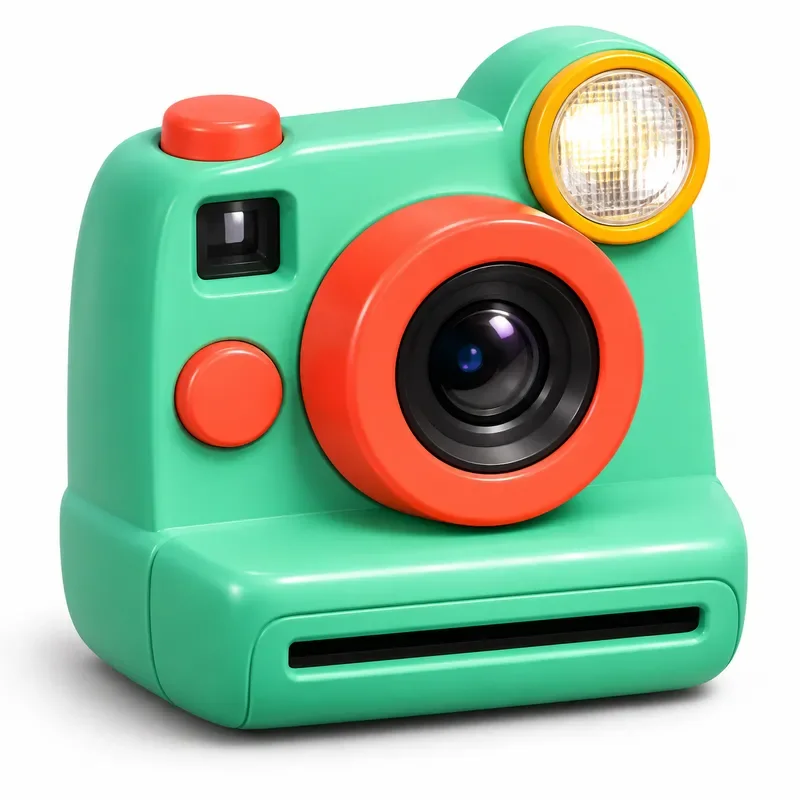 Start with the same picture
Use the same source image
Choose one image of a single subject and use the identical source file for both runs. For a repeatable Meshy vs Tripo comparison, keep the object fully in frame and leave the image crop and background unchanged.
- Meshy 7.1
- Tripo H3.1
Run both models and record the settings
Open Meshy 7.1 and Tripo H3.1, select single-image mode and use the same texture choice. Start a generation in each workspace and record the settings shown for each model. Wait until both runs finish before judging the pair.
Meshy 7.1 Tripo H3.1 Inspect matching angles
Inspect the Meshy vs Tripo meshes from the front, side and back under the same preview lighting. Look past the color to compare openings and joins. Note the elapsed time for each individual task if it matters to your test.
More generators
Continue with a 3D tool
Open a model’s workspace or compare other ways to make a 3D asset.
Stories
Meshy vs Tripo Stories
Creator stories inspired by the Meshy and Tripo models made from the same picture.
The robot’s arms were the part I cared about in Meshy vs Tripo. I turned both meshes sideways and compared the gaps against the same picture. I brought a side view into our prop review so the team could point to the joints we wanted to keep. That made the feedback much easier to use.
Alina Mercer
FAQ
Meshy vs Tripo FAQ
Meshy vs Tripo questions about photo inputs, texture and the files you can download.
- Meshy 7.1 · Tripo H3.1
- GLB · OBJ · STL
- Same-image examples
Meshy 7.1 and Tripo H3.1 both turn images into 3D models. In a multi-image Meshy vs Tripo comparison, Meshy accepts two to four views, and Tripo uses four specific angles.
Try Meshy or Tripo with your own image
Put the Meshy vs Tripo comparison to work with one picture of an object you know. Generate a mesh with either model, rotate the result and choose a file to continue editing.