Tripo H3.1 · Third-party access
Tripo AI: Explore your object with Tripo H3.1
Start Tripo H3.1 with an image, a text prompt or four matching views of one object. Turn the model around to inspect its shape, then export GLB, OBJ or STL.
Create your model
3D preview
Sample result · Tripo H3.1
 Input image
A real Tripo H3.1 example generated on Image to 3D AI. Inspect the shape, then create your own model from a supported input.
Use cases
Tripo AI models for object and character studies
Explore Tripo AI through real generated objects, then judge what your own project still needs. Each example keeps its model and input method visible.
- Tripo H3.1
Use Tripo AI to examine a prop’s large forms and recognizable details before preparing a production version. A reference picture can communicate the intended silhouette, while the preview lets you check the inferred back and underside. Continue any topology, material and engine-specific work in your own editing tools.
- Tripo H3.1
A Tripo AI result can provide a three-dimensional starting shape for a decorative figure or ornament. Rotate it before choosing an STL export, and look closely at small appendages or disconnected pieces. Your slicer and mesh editor still need to establish suitable dimensions, wall thickness, closure and supports for printing.
- Tripo H3.1 · 4 views
Explore a product idea with Tripo AI when you have a picture, a written description or a complete set of views. Compare the resulting proportions and parts with that input. The mesh can support a visual discussion, with precise fit, materials engineering and manufacturing constraints handled in a separate design process.
- Tripo H3.1
Use Tripo AI to develop a character accessory or scene prop that needs a readable shape from multiple angles. Supply consistent references and inspect the generated interpretation before downloading it. Animation-ready topology, rigging, lighting and final materials remain additional production tasks rather than automatic outcomes of this workflow.
Examples
Tripo AI results with their original references
Inspect the input and generated Tripo H3.1 result together. The labels distinguish picture, text and multi-image tasks so that a polished single-image example is not mistaken for a test of another input method.
 Input image
Features
Give Tripo AI the references your object needs
Use Tripo AI with the input method that describes your subject most clearly. Check its available options and inspect the resulting geometry before moving on to an export.
Start from the visible shape of one object
A single picture gives Tripo AI a starting silhouette and surface appearance. Choose a view that shows the main volume, keep the object in frame and avoid hiding important parts behind unrelated details. The model infers surfaces that the picture cannot show, so inspect those regions instead of judging the result only from the original angle.
 Input image

Inspect the generated Tripo model from several angles
A Tripo AI result should remain recognizable beyond its front view. Compare the generated front, side and back to examine the outline, surface interpretation and inferred hidden parts of one output mesh. Then rotate the interactive example for a closer look at connections and details. The actual input remains identified with the example, whether it came from a picture, a prompt or a complete four-view reference set.



Separate surface choices from geometry detail
Review the Tripo AI texture and mesh-detail settings before generating. The current low, standard and high requests use different geometry settings, but a requested limit is not a guarantee of an exact output face count. Rotate the finished mesh in solid and wireframe views as well as textured mode to decide whether its form meets your needs.

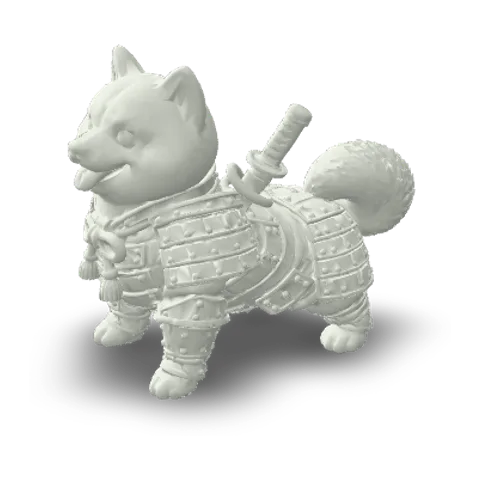
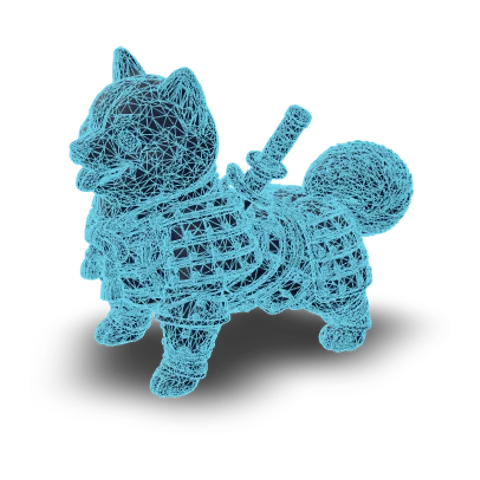
Choose a delivery format after inspecting the result
The platform offers GLB, OBJ and STL export for the generated mesh. A GLB is convenient for compatible viewers, OBJ can require material and texture companions, and STL keeps geometry without color. These are this workspace’s delivery choices; they should not be confused with every format or editing feature available in the official Tripo product.

- glbWeb and games
- objEditing tools
- stl3D printing
How it works
How to create with Tripo AI in this workspace
Prepare an input, review Tripo H3.1 and its quote, then inspect the downloadable result. The same side-by-side workspace stays available throughout your Tripo AI task.
- Add a reference

Choose the input for your object
Keep Tripo AI selected and choose Image, Text or Multi-Image. Upload a clear reference picture, describe the object, or fill the complete four-view set in order. Review the current input limits before continuing, especially the named positions required for a multiview task.
- TRELLISFREE
- Rodin 2.5 FastPRO
- Hunyuan 3D 3.1 RapidPRO
- Tripo H3.1PRO
- Hunyuan 3D 3.1 ProPRO
- Rodin 2.5PRO
- Meshy 7.1PRO
Review the selected model and options
Check that the selector still shows Tripo H3.1, then review texture, mesh detail and the displayed quote. Tripo AI uses the currently supported combination for the task you explicitly start. Changing an input tab or loading an example does not itself submit a new generation.
- GLBOBJSTL
Inspect the interpretation and export
When the task finishes, rotate the object and examine the hidden surfaces as well as its main view. Compare geometry and texture, choose your download format and continue any cleanup in a compatible editor. Perform separate manufacturing or printing checks where those apply.
More generators
More AI 3D generators
Explore the tools alongside Tripo AI, from alternative input approaches to format-focused workspaces and other model pages with their own settings and examples.
Stories
Tripo AI Stories
Treasure chests, armored characters and mechanical props feature in these Tripo AI stories, with creators describing the details they inspected from different viewpoints.
I used Tripo AI with the mimic-chest picture and inspected the teeth, tongue and open lid in the preview. Rotating the result revealed how the generated back joined the front. I saved the GLB with the reference and used the comparison to organize my prop notes, rather than treating the first attractive angle as the finished design.
FAQ
Tripo AI questions
Answers about the Tripo H3.1 integration, supported inputs and the files delivered by this third-party Tripo AI workspace.
- Tripo H3.1
- GLB · OBJ · STL
- Third-party access
This third-party Tripo AI workspace uses the configured H3.1 integration on Image to 3D AI, rather than the official Tripo website. The official product has its own account, interface, plans and feature set; those conditions should not be assumed to apply here.
Create your next Tripo AI object from a clear reference
Choose an image, description or complete four-view set, review Tripo AI options and start your generation. Rotate the resulting object, inspect its geometry and download a mesh you can continue refining in your own tools.