Start with several views
Multiple Images to 3D Model: Give one object more than one side of the story
Upload matching angles of one object and build a textured mesh free, with no sign-up. Inspect the result from several sides and choose GLB, OBJ or STL to download.
Create your model
3D preview
Sample result · TRELLIS
 Multi-Image to 3D
A real TRELLIS example generated on Image to 3D AI. Inspect the shape, then create your own model from a supported input.
Use cases
Multiple images to 3D model projects with more reference
Use the multiple images to 3D model workflow when one view leaves important shapes unclear. Consistent front, side and back references provide more visual information for the same generated object.
- Tripo H3.1 · 4 views
The multiple images to 3D model workspace lets a prop designer provide more than a front silhouette. Add consistent views of the same object to show a handle, side panel or rear detail, then inspect how those clues were interpreted. Further geometry and texture work may still be needed before using the asset in a game.
- TRELLIS · 3 views
Use a multiple images to 3D model draft to explore the volume of a toy or decorative object from several references. Export an STL when you are ready to continue in a slicer or mesh editor. Check thickness, connected parts, supports and dimensions independently before treating the result as printable.
- TRELLIS · 4 views
Start a multiple images to 3D model study with matching product views that show the same design, proportions and parts. The result can help you discuss an overall form in three dimensions. It remains generated geometry rather than a measured reconstruction or a replacement for engineering CAD and dimensional checks.
- TRELLIS · 4 views
Bring front and rear reference together when exploring a character accessory or a set-dressing object. Inspect the complete generated shape in the viewer and look for conflicting details between surfaces. Use the downloaded mesh as a planning asset, then refine the topology, materials and other production requirements in your own tools.
Examples
Generate a 3D model from multiple images: inspect the inputs and result
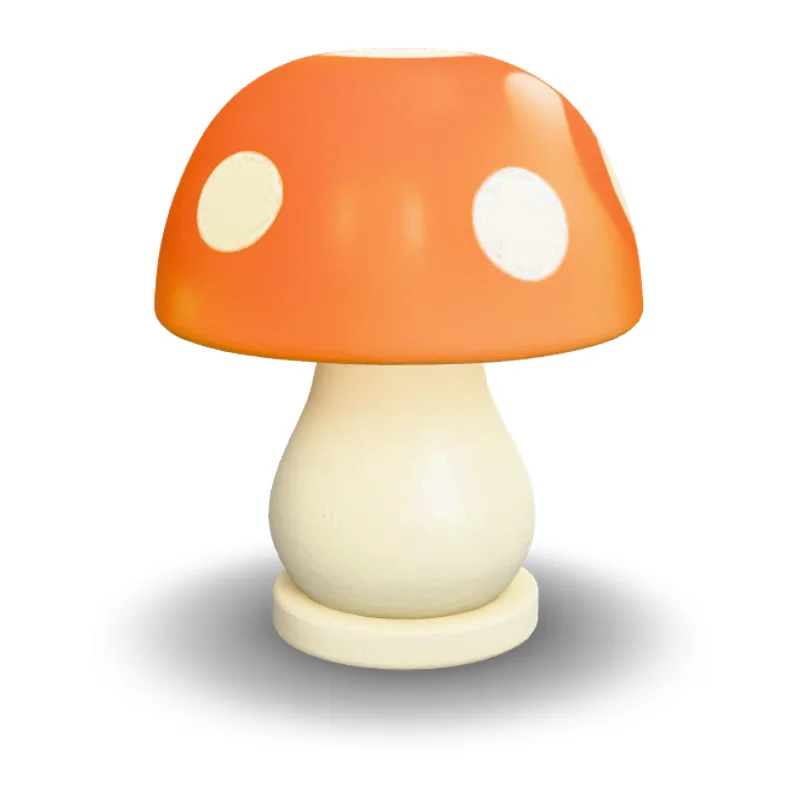
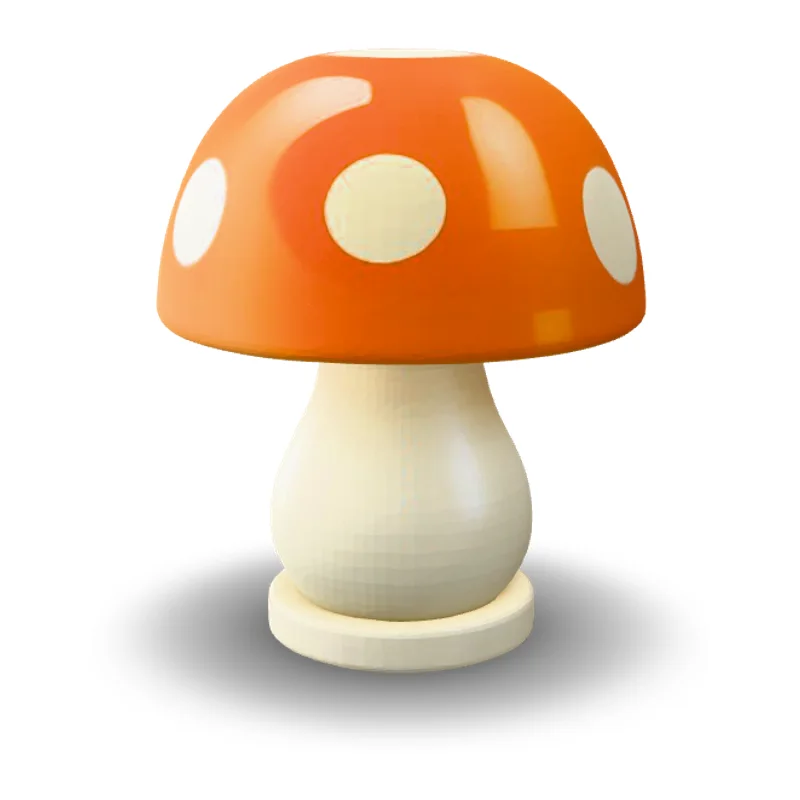
Every example identifies the model and the views used for one object. The camera and lamp use reference views rendered from existing original 3D assets; they demonstrate multi-image generation with synthetic views, rather than reconstruction from real photographs. Check the inputs beside each result before trying the same set.

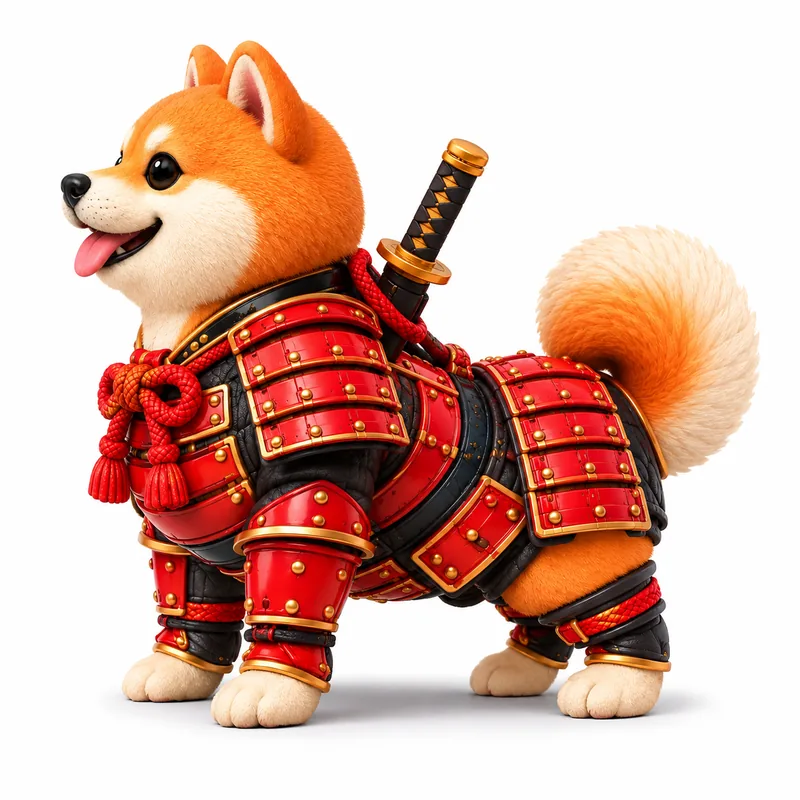

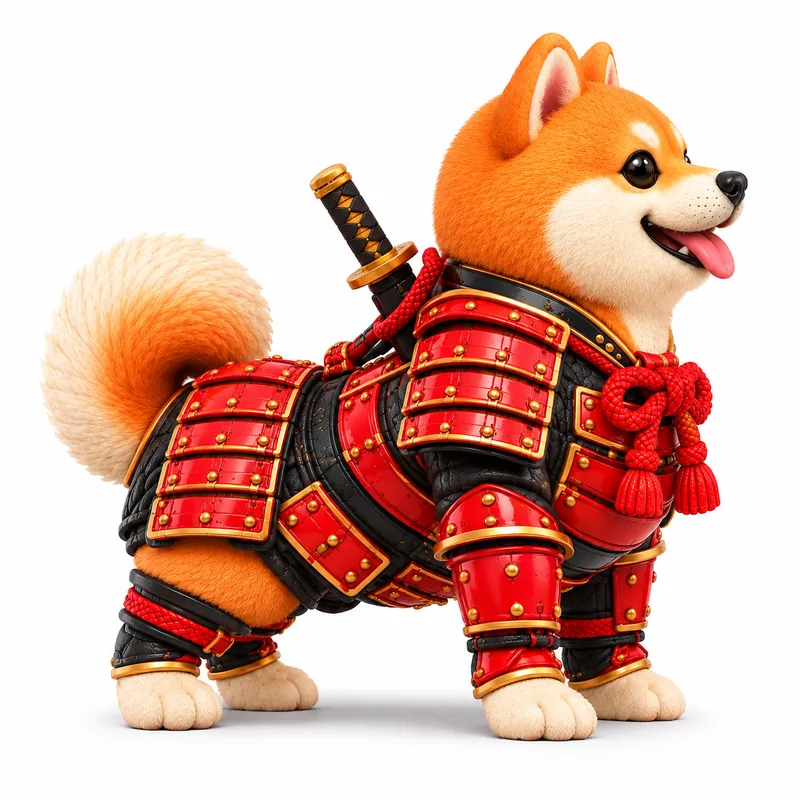 Input image
Models
Choose a multiview 3D model generator with the right input limits
Compare models that accept multiple views. TRELLIS accepts two to eight images, Rodin models two to five, Meshy two to four, and Tripo requires all four named views in order. Check the selected model’s upload requirements before generating.
| Model | Image | Text | Multi-Image | Mesh detail |
|---|---|---|---|---|
| TRELLIS | Yes | — | 2–8 views | Low · Standard · High |
| Rodin 2.5 Fast | Yes | Yes | 2–5 views | Low · Standard · High |
| Tripo H3.1 | Yes | Yes | 4 set views | Low · Standard · High |
| Rodin 2.5 | Yes | Yes | 2–5 views | Low · Standard · High |
| Meshy 7.1 | Yes | Yes | 2–4 views | Low · Standard · High |
Inputs and mesh detail levels come from each model’s current settings in the workspace. Results vary with the picture you upload.
Multiple images to 3D model essentials
- Input
- Different angles of one consistent object
- View limits
- The selected model controls the accepted number of images
- Fixed views
- Tripo H3.1 requires all four named positions in order
- Result
- One generated mesh for the input set, not one model per image
- Export
- Preview the volume and choose GLB, OBJ or STL
- Compatible models
- Choose a multiview-capable model to see its supported image count and view positions
Features
A multiple images to 3D model workflow built around one object
A multiview 3D model generator benefits from references that agree. Keep the subject consistent, follow the selected model’s view requirements and inspect the inferred geometry before taking the mesh into another tool.
Use different views of the same subject
The multiple images to 3D model workflow creates one object from a set of references. Choose pictures that show the same shape and design from different angles, with the important parts visible. Mixing unrelated objects or incompatible versions gives the model conflicting information. This input mode is not a batch uploader that creates a separate mesh for each image.

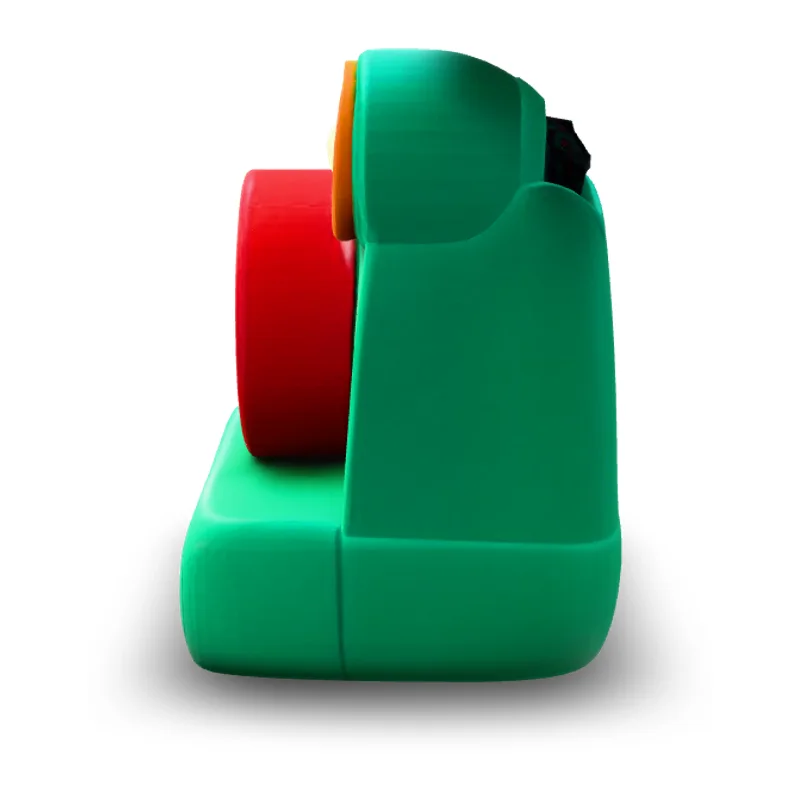
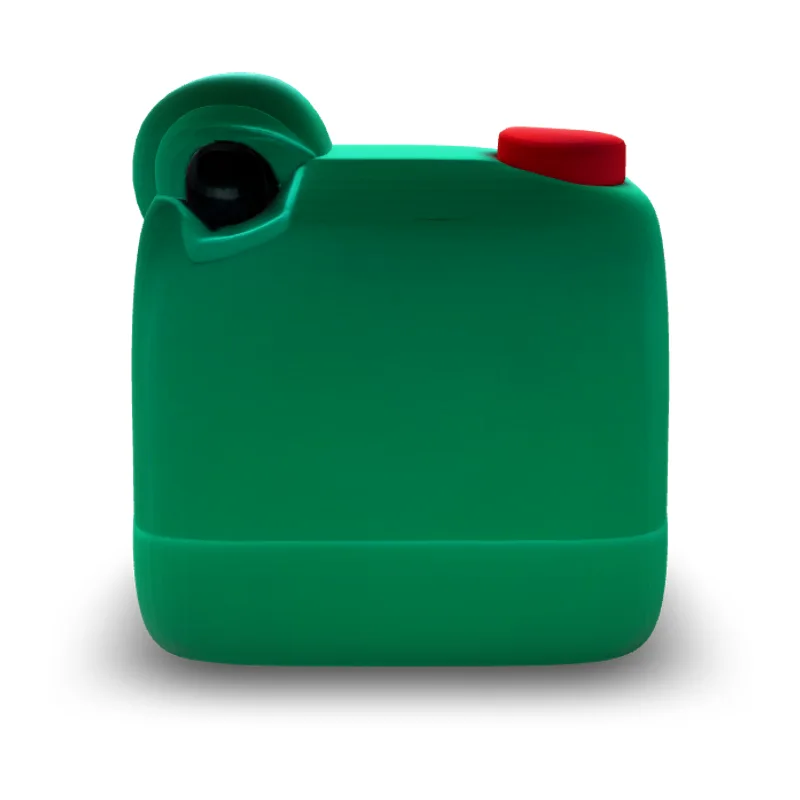
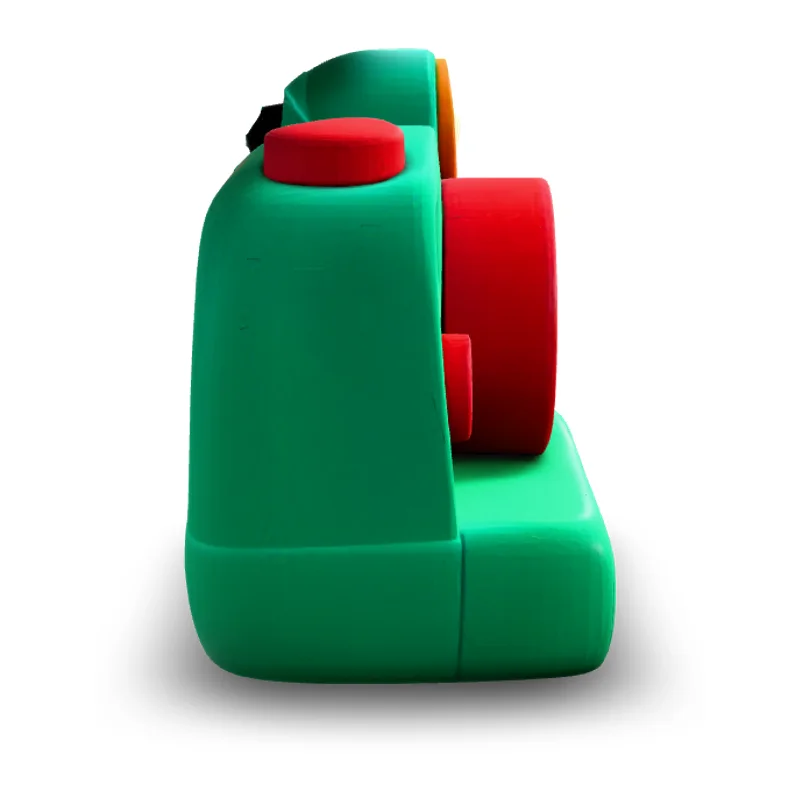 Input image
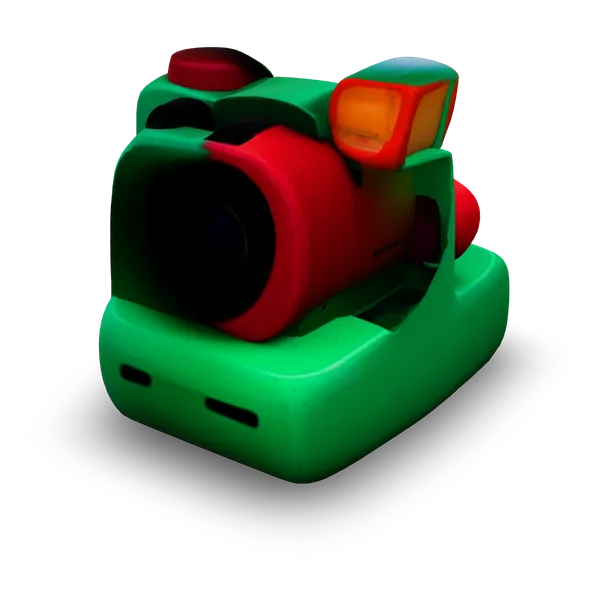
Inspect the combined result from several sides
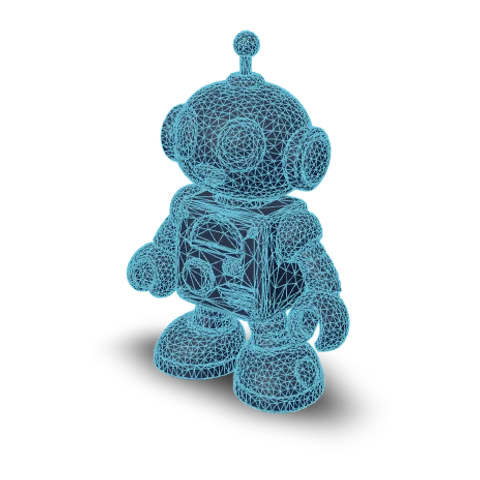
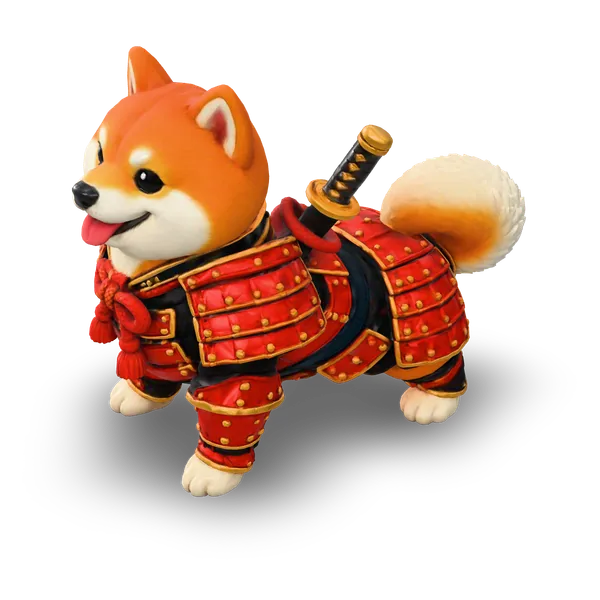
A multiple images to 3D model result combines the references into one generated mesh. The front, side and back images here show that finished mesh, so inspect how its surfaces connect and where the model inferred missing details. They are output views rather than upload positions. For a new request, follow the actual upload panel: Tripo requires all four named inputs in their fixed order.



Inspect the interpretation from all directions
Review a multiple images to 3D model result beyond the angles visible in your references. Additional pictures provide shape and surface clues, but generated geometry is not a measurement-grade reconstruction. Turn the model, inspect the underside and compare solid, textured and wireframe views. Texture and mesh-detail options remain model-specific, so check the available settings rather than assuming every model behaves alike.
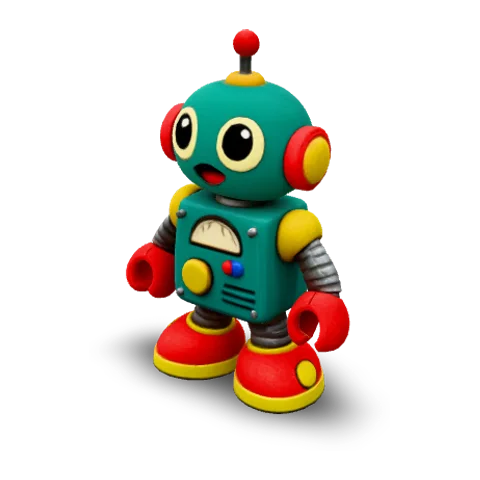
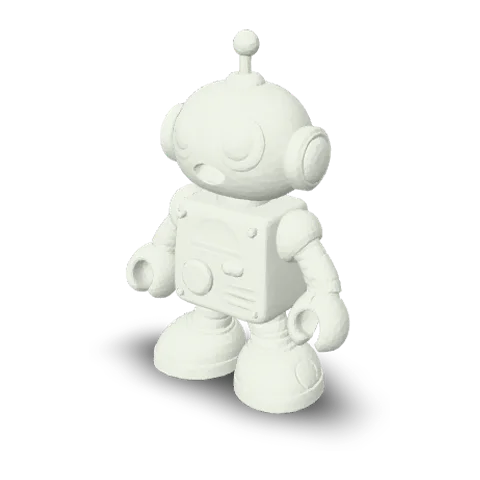
Carry one combined mesh into your next tool
Download the generated object as GLB, OBJ or STL after checking its volume. GLB packages a model for compatible viewers and editors; OBJ delivery can include separate material and texture files; STL keeps geometry without its surface colors. The file choice changes delivery, not the accuracy of the reconstruction, and each downstream workflow may need its own cleanup or validation.
- glbWeb and games
- objEditing tools
- stl3D printing
How it works
How to generate a 3D model from multiple images with matching views
Prepare matching views, upload them into the correct positions and examine the resulting mesh. The multiple images to 3D model workspace keeps the inputs and preview side by side.
- Add matching views
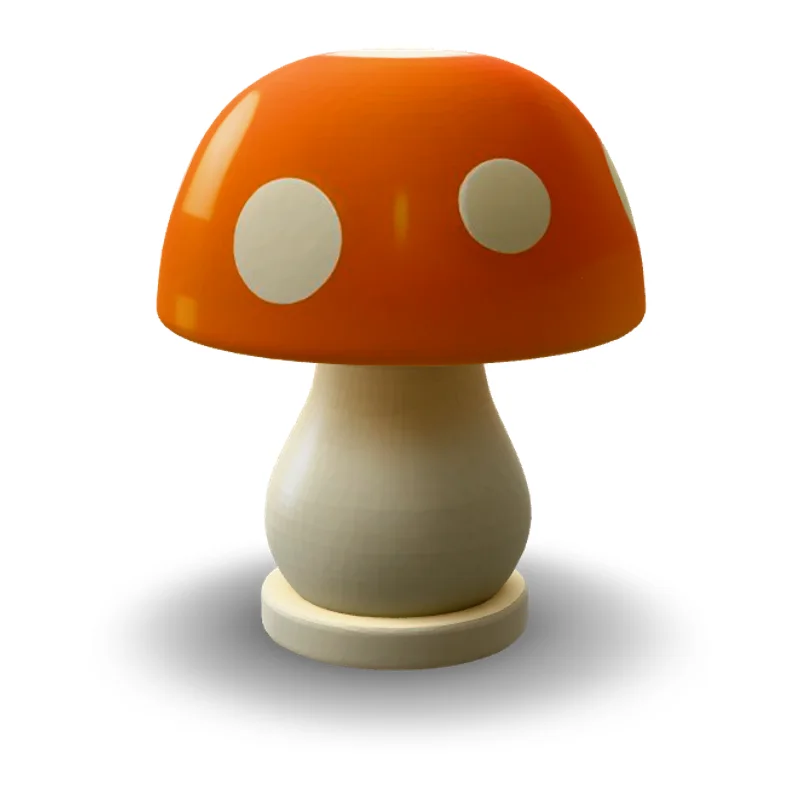
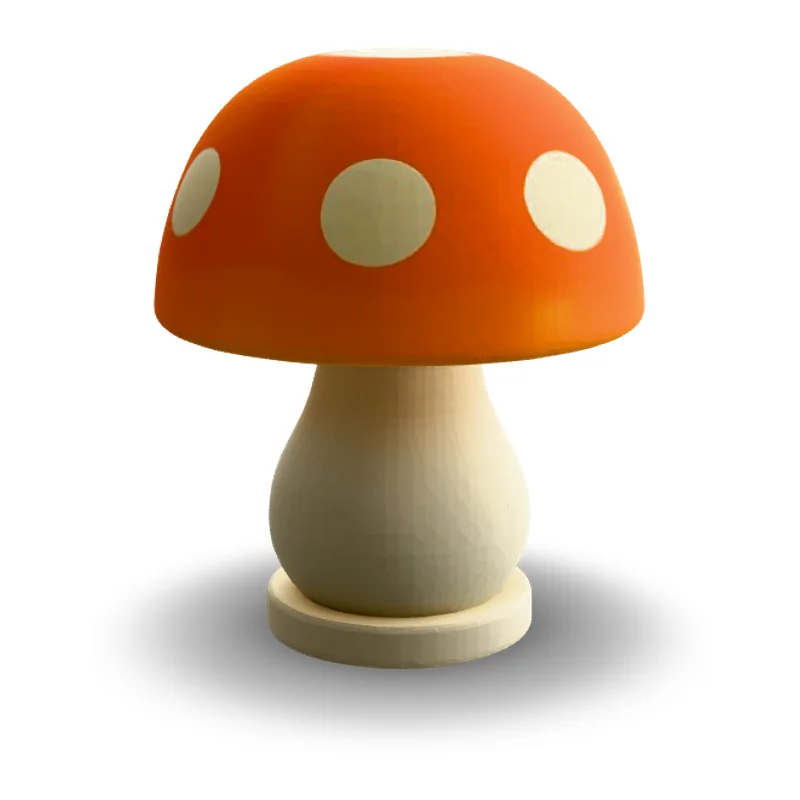
Prepare a consistent set of pictures
Begin a multiple images to 3D model task with clear views of one subject. Keep the design and proportions consistent, remove unrelated pictures and make sure important parts remain visible. Check the image count for your preferred model before choosing the final input set.
- TRELLISFREE
- Rodin 2.5 FastPRO
- Hunyuan 3D 3.1 RapidPRO
- Tripo H3.1PRO
- Hunyuan 3D 3.1 ProPRO
- Rodin 2.5PRO
- Meshy 7.1PRO
Upload every required view and check the quote
Fill the selected model’s upload slots, following named view positions when they are shown. Review each picture before starting the multiple images to 3D model generation. Choose the available texture and detail options, check the credit quote and press Generate when the complete set is ready.
- GLBOBJSTL
Examine the combined object and export
Rotate the generated result and compare its front, sides and back with your references. Inspect any hidden or inconsistent surfaces, then choose a download format for your next tool. Keep companion material files together for OBJ, and perform separate mesh and scale checks before printing an STL.
More generators
More AI 3D generators
Alongside multiple images to 3D model creation, explore single-image and text inputs, export-focused pages and the capabilities listed for each model.
Stories
Multiple Images to 3D Model Stories
These multiple images to 3D model stories follow matching views of toys and products, as creators compare the generated shape with their references.
I used the multiple images to 3D model workspace with matching views of a retro robot. Seeing the result turn from its face to its back helped me compare the body and feet as one object. I checked the reference views beside the mesh and exported GLB for a toy-form review rather than treating the front preview as the whole result.
FAQ
Multiple images to 3D model questions
Practical answers about matching views, model-specific input limits and downloading a result from a multiview 3D model generator.
- Model-specific view limits
- GLB · OBJ · STL
- One model per input set
The multiple images to 3D model mode uses several views as references for one generated object. Upload pictures of the same subject rather than treating the panel as a batch queue for unrelated images.
Start your multiple images to 3D model with matching views
Choose clear views of one object, check the selected model’s upload positions and quote, then generate a multiple images to 3D model result. Rotate the combined mesh and download it for further editing or preparation.