TRELLIS
Image-to-3D model guide
Meshy Alternatives: Choose a 3D model for the work you do
Rotate sample meshes free, with no sign-up. Compare which inputs and export formats each Meshy alternative supports before you choose a model.
Choose a starting point for your 3D workflow
Compare optionsUse cases
Find a Meshy alternative by task
Shortlist Meshy alternatives by what you start with and what you need next, from a quick draft to a mesh for an editor or engine.
- TRELLIS
Start with a clear picture of one object for a quick prop draft. Compare Meshy alternatives by how well each draft carries the outline around the sides, then choose a mesh to refine before you work on small surface details.
- TRELLIS · 4 views
When you have side and back views of an object, check which Meshy alternatives accept your image set. Align the scale and lighting across the pictures, then use the rear reference to check the finished mesh in the preview.
- TRELLIS
Shortlist Meshy alternatives with mesh-detail controls when a prop must fit an engine budget. Compare the actual face counts and silhouettes from the same viewing distance, then test the exported mesh in the scene where it will run.
- TRELLIS
Check the formats your editor accepts before preparing a mesh for another tool. Choose GLB when you want geometry and its available textures in one file. Use STL when the receiving tool mainly needs the shape.
Models
Compare Meshy alternatives by inputs and options
These are model options available through this workspace. The corresponding standalone apps and self-hosted releases have their own requirements and features.
| Model | Image | Text | Multi-Image | Mesh detail | Standard image credits |
|---|---|---|---|---|---|
| TRELLIS | Yes | — | 2–8 views | Low · Standard · High | 8 |
| Rodin 2.5 Fast | Yes | Yes | 2–5 views | Low · Standard · High | 40 |
| Hunyuan 3D 3.1 Rapid | Yes | Yes | — | Standard only | 90 |
| Tripo H3.1 | Yes | Yes | 4 set views | Low · Standard · High | 120 |
| Meshy 7.1 | Yes | Yes | 2–4 views | Low · Standard · High | 480 |
Scroll sideways for mesh detail and credits.
Compare the hosted model integrations shown on this page. Open the model workspace to see the settings available for your specific input.
What to check first
- Reference
- One image, a set of views or a text description
- Asset
- Which mesh format your next tool needs
- Cost
- The current quote for the input and settings you choose
Examples
One reference image across 3D models
Inspect how the available models interpret the same robot reference. Rotate a result to check its outline and visible parts from more than one side. Face counts come from the original outputs. The viewer uses web-optimized versions, and times are for the runs shown.

Reference image
Single image · standard detail · texture on
Meshy 7.1
TRELLIS
Meshy 7.1
Features
What makes a useful Meshy alternative?
Meshy alternatives can differ in how they interpret a shape, use additional views and represent fine detail. Those differences matter when the resulting asset has to hold up at a chosen camera angle or fit a particular delivery format.
Judge which shapes survive generation
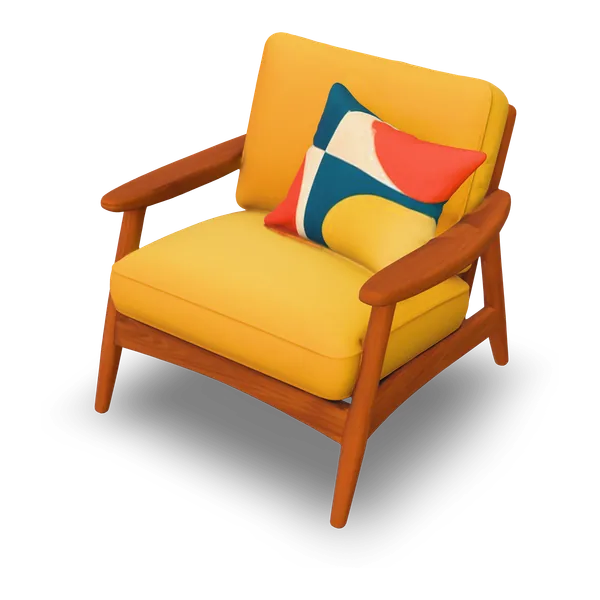
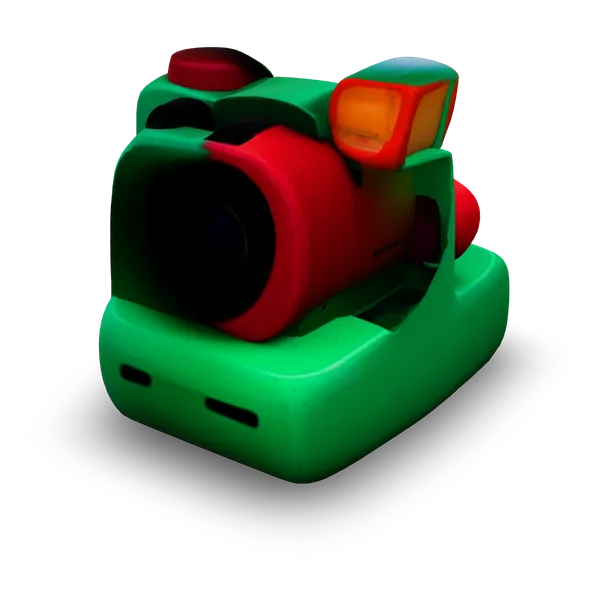
A useful difference between Meshy alternatives is how each one represents the parts you recognize first. An armchair can keep its overall silhouette while losing the gap between the cushion and the arm frame. That matters more when the chair sits in the foreground than in a distant shot where the outline does most of the work.
 Input image
Use more views when a single outline hides detail
A multi-image option among Meshy alternatives can use views of an object that a single photo leaves out. Side and rear references give evidence about the depth of an object and where its pieces join. That matters most when the finished prop will be seen from multiple angles.

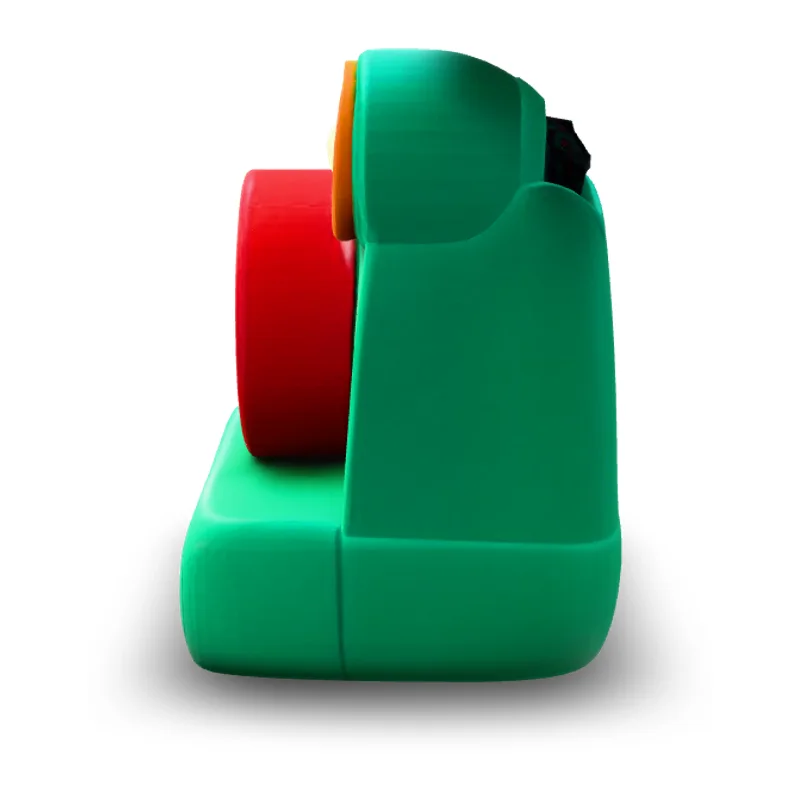
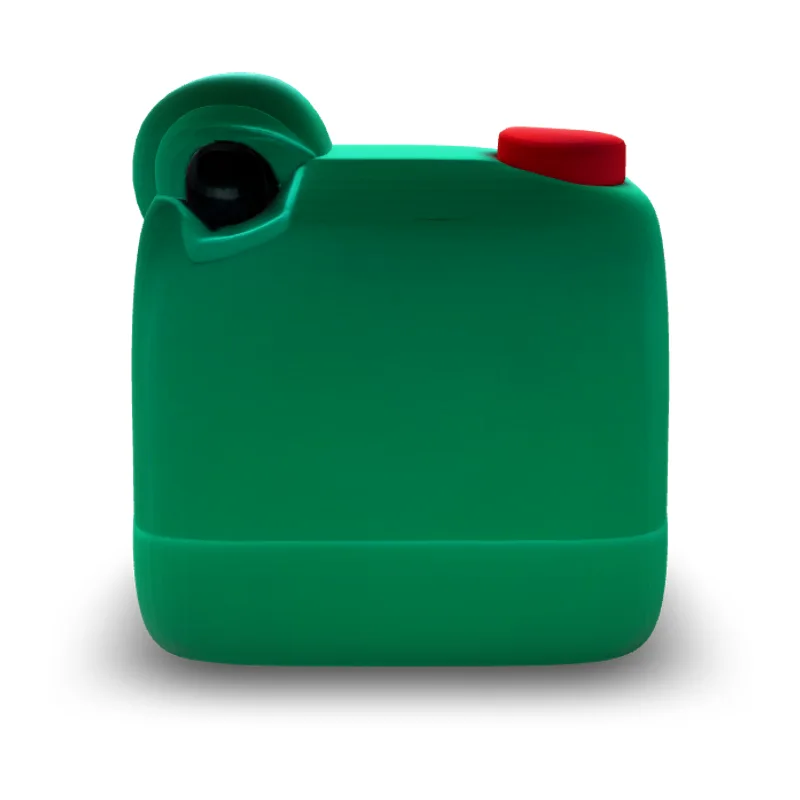
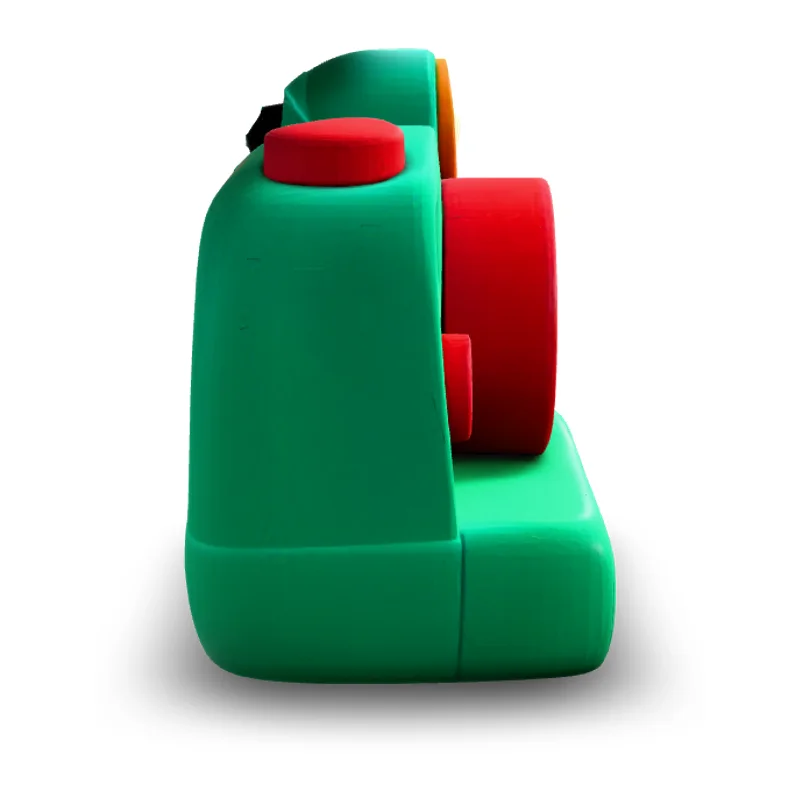 Input image
Check the resulting mesh
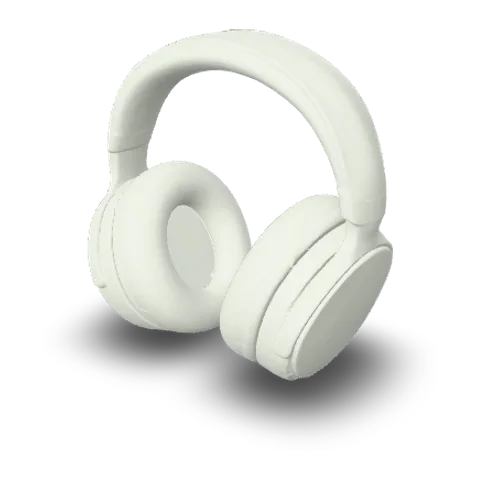
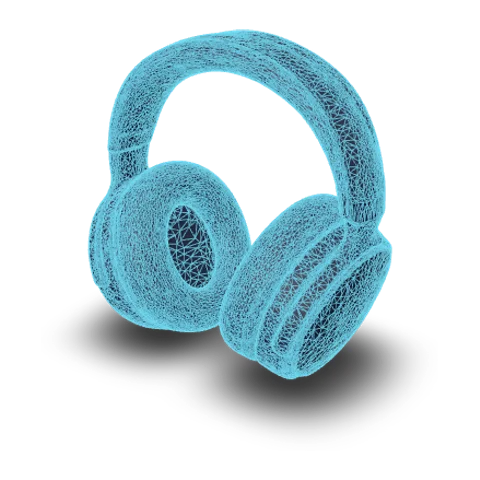
Compare the models’ detail settings and inspect faces, edges and gaps on the result. Check how much of the visible detail comes from texture and how much is present in the surface itself. Use face count alongside those observations when you evaluate the file in your editor or engine.

Match the file contents to the next job
When assessing Meshy alternatives, consider what the next tool needs to receive. GLB keeps the mesh and available textures together for a scene handoff. A textured OBJ travels with material and image files. STL carries geometry alone when the next decision is about the shape in a mesh editor or print slicer.

- glbWeb and games
- objEditing tools
- stl3D printing
How it works
How to choose a Meshy alternative
Compare Meshy alternatives by choosing an input, generating a test mesh and opening the result in the tool you already use.
- Choose a clear reference
Define your next step
Identify the decision you need the first test to answer. For example, choose Meshy alternatives by their single-image support if you have one clean photo, or by multi-image support if showing the back is important.
- Meshy 7.1
- TRELLIS
- Tripo H3.1
- Hunyuan 3D 3.1 Rapid
- Rodin 2.5 Fast
Run the same reference
Open a model that accepts your reference, upload the picture and set the available detail options. Generate a result and wait for it to appear. Use the same source image when you run another model for comparison.
- GLBOBJSTL
Open the result in your editor
Open the meshes from your shortlisted Meshy alternatives in the same editor. Check texture appearance, scale and surfaces in the target workflow. Download or keep the version whose shape and file format suit the next edit.
More generators
Try another 3D workflow
Open a model page, use multiple views, or compare two results from the same picture.
Stories
Meshy Alternatives Stories
Creator stories inspired by the different model results shown here.
I was blocking out a workshop and needed a robot for the corner. I opened the Meshy alternatives, turned the robot drafts to see how the feet met the floor, and used the shape I liked as a reference in my layout notes. The comparison gave me a clear direction before I touched the materials.
Maya Selwyn
FAQ
Meshy alternatives FAQ
Find a Meshy alternative for the images, mesh detail and file formats you need.
- Tripo · TRELLIS · Hunyuan · Rodin
- GLB · OBJ · STL
- Hosted model options
Tripo, TRELLIS, Hunyuan and Rodin are Meshy alternatives available here. For a quick textured draft, start with TRELLIS. If you have several angles or need specific mesh settings, compare the model options.
Try a Meshy alternative with your own image
Compare Meshy alternatives with one reference you already know. Bring the picture into the generator, choose one of the available models, then rotate the result before downloading the mesh for your next edit.