Hunyuan 3D 3.1 · Rapid and Pro
Hunyuan 3D: Choose a Rapid or Pro starting point for your object
Choose Rapid or Pro and start with an image or a text prompt. Inspect the silhouette and materials from several angles, then download your 3D model.
Create your model
3D preview
Sample result · Hunyuan 3D 3.1 Rapid
 Input image
A real Hunyuan 3D 3.1 Rapid example generated on Image to 3D AI. Inspect the shape, then create your own model from a supported input.
Use cases
Hunyuan 3D models for form and surface exploration
Use Hunyuan 3D to examine a generated object from several angles before deciding how to develop it further. Rapid and Pro examples are labeled by the actual model used.
- Hunyuan 3D 3.1 Rapid
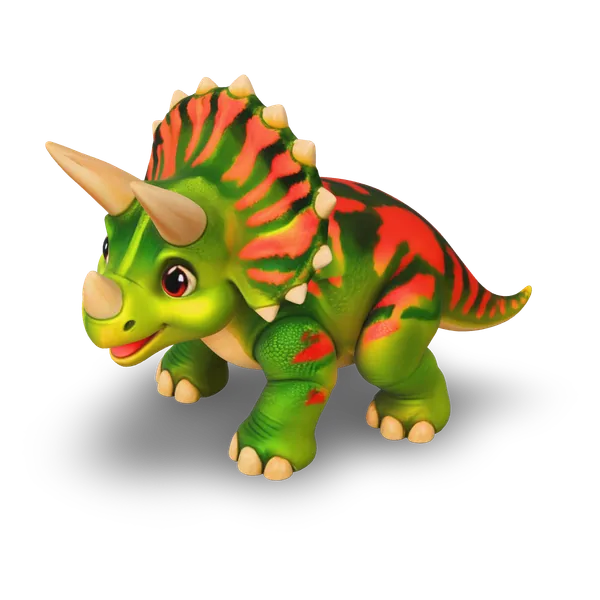
Explore a prop or creature concept with Hunyuan 3D using a clear picture that communicates its main form. Inspect the generated interpretation from several directions and check the small features that matter to the design. Geometry cleanup, deformation topology and material budgets still need attention before an asset enters a finished game.
- Hunyuan 3D 3.1 Rapid
A Hunyuan 3D mesh can help you inspect the volume of a decorative figure or object before preparing a physical version. Look for thin parts, intersections and unclear connections as you rotate it. An STL download starts a separate preparation step involving scale, mesh repair, wall thickness and supports.
- Hunyuan 3D 3.1 Rapid
Use Hunyuan 3D to make a visual product concept easier to discuss when you already have a reference image or can describe the form. Compare visible proportions and major parts rather than assuming dimensional precision. The generated model supports exploration, while engineering fit and manufacturing decisions require their own design work.
- Hunyuan 3D 3.1 Rapid
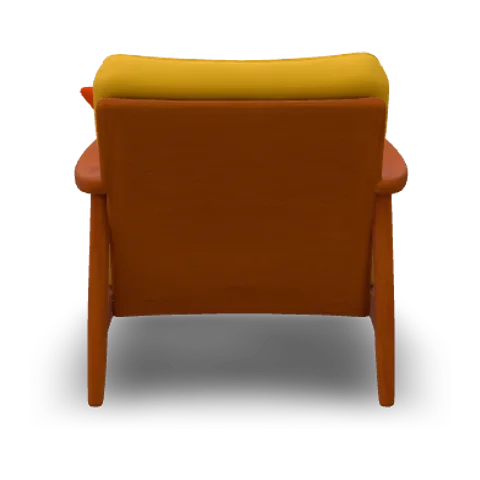
Use a picture or a description of a scene prop or display object with Hunyuan 3D to explore its three-dimensional form. The chair shown here starts from an image. Inspect the resulting silhouette and material interpretation before downloading. Further work on topology, textures, lighting and any rigging remains part of your own production workflow rather than an included animation service.
Examples
Hunyuan 3D examples labeled Rapid or Pro
Compare each result with its actual input and read the model label. These are individual Hunyuan 3D generations, not a controlled claim that one version is always better or that every input produces the same quality.
Input imageModels
Hunyuan 3D Rapid and Pro: compare the available choices
Compare the input methods and mesh-detail choices offered here by Hunyuan Rapid and Pro. The examples above identify the actual model and reference used for each result. They are individual samples, rather than a controlled quality ranking.
| Model | Image | Text | Multi-Image | Mesh detail |
|---|---|---|---|---|
| Hunyuan 3D 3.1 Rapid | Yes | Yes | — | Standard only |
| Hunyuan 3D 3.1 Pro | Yes | Yes | — | Low · Standard · High |
Inputs and mesh detail levels come from each model’s current settings in the workspace. Results vary with the picture you upload.
Choose a Hunyuan 3D model
- Rapid
- Hunyuan 3D 3.1 Rapid offers textured output at standard mesh detail
- Pro
- Hunyuan 3D 3.1 Pro offers the current model-specific detail choices
- Inputs here
- Image and text; neither Hunyuan model currently offers multi-image here
- Surface
- Texture is on for both; PBR selection is not offered here
- Files
- Inspect the saved original and choose a GLB, OBJ or STL export
- Version settings
- Switching Rapid or Pro updates the supported controls; review the current model and mesh-detail selection
Features
Explore Hunyuan 3D with the options offered here
Choose a Hunyuan 3D model by its actual input and detail options. The workspace keeps the reference and preview together so you can inspect the object before downloading it.
Give the model a clear object reference
Start a Hunyuan 3D image task with one recognizable subject, fully visible in the frame. A view that shows the main volume helps communicate the design, but the model must still infer parts that are hidden. Rotate the result to inspect those surfaces, with particular attention to narrow features, connections and the underside.
 Input image

Inspect the generated Hunyuan model around its sides
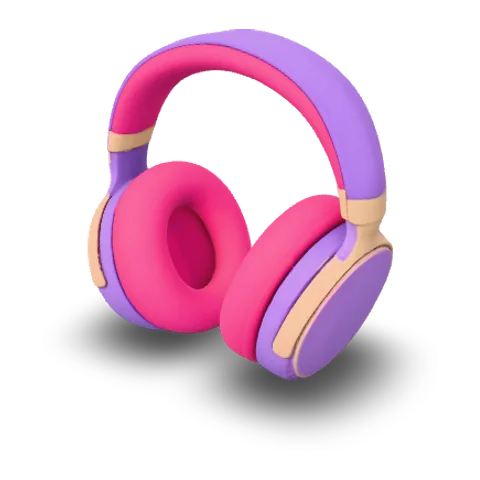
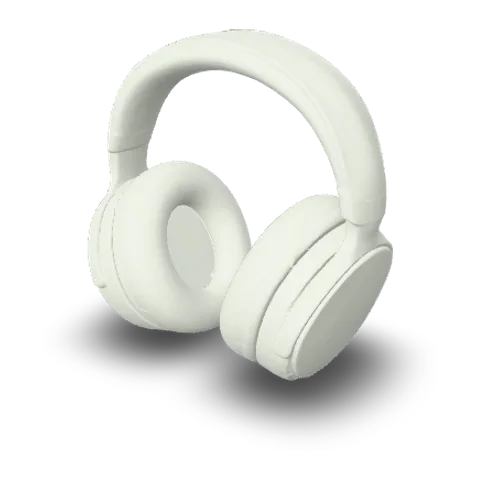
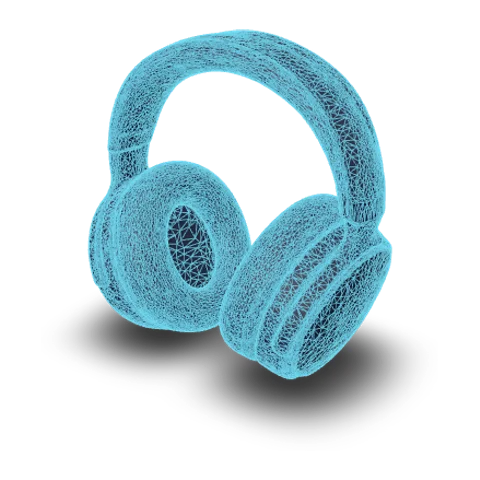
A Hunyuan 3D result interprets parts of the object that a single reference may leave hidden. Compare the generated front, side and back views to examine proportions, continuity and surface details around one mesh. Review the named Rapid or Pro model and the actual input beside each example. These different output angles support inspection of that sample, rather than a general quality ranking between model versions.


Choose Rapid or Pro with its own settings
Hunyuan 3D Rapid provides one standard detail level with texture on. Pro offers its currently configured detail choices, and its quote reflects the selected combination. Neither model exposes a PBR switch or texture-off choice here. Inspect the current controls after changing versions so that an option from another model is not mistaken for an available Hunyuan setting.
Distinguish the original file from its export
A previewable model does not mean every provider returned the same native format. Rapid results can arrive as OBJ with material and texture companions, and the viewer can convert that geometry for GLB delivery. Select GLB, OBJ or STL according to your next tool, and preserve companion resources when using an OBJ package outside this workspace.
- glbWeb and games
- objEditing tools
- stl3D printing
How it works
How to generate with Hunyuan 3D using Rapid or Pro
Choose a supported input and a Hunyuan 3D version, check its settings, then inspect and download the result. No local model installation is needed for this online workflow.
A glowing crystal fox figurine with translucent blue ears and a curled tail, sitting on a round stone base
Add an object referenceChoose an image or a description
Start with an Image or Text input while Hunyuan 3D is selected. Upload a clear subject picture or describe its form and material within the visible limit. Several views are not a supported input for these Hunyuan models in the current workspace.
- TRELLISFREE
- Rodin 2.5 FastPRO
- Hunyuan 3D 3.1 RapidPRO
- Tripo H3.1PRO
- Hunyuan 3D 3.1 ProPRO
- Rodin 2.5PRO
- Meshy 7.1PRO
Review Rapid or Pro and the quote
Select the Hunyuan 3D version that offers the settings you want. Rapid uses standard detail, while Pro has its own available detail combinations. Review the selected version, texture state and credit quote before explicitly starting generation; switching versions alone does not create a task.
- GLBOBJSTL
Inspect the mesh and choose delivery
Turn the generated object to check its overall form, inferred surfaces and material. Select a download format suited to the next editor or preparation tool, keeping OBJ companions together where provided. Carry out any exact sizing, topology correction or printing checks after import.
More generators
More AI 3D generators
Compare Hunyuan 3D with other model workspaces, explore the separate input tools or choose a dedicated export page for your next model.
Stories
Hunyuan 3D Stories
These Hunyuan 3D stories span picture references and written ideas, following creators as they inspect headphones, patterned vessels and creature shapes for their design studies.
I used Hunyuan 3D with a headphone reference and checked the ear cups, headband and rear surfaces in the viewer. Turning the mesh gave me more useful views for a form discussion than the single picture alone. I saved the model with the reference and marked the inferred details for further inspection.
FAQ
Hunyuan 3D questions
Understand the Rapid and Pro integration, current inputs and original-versus-exported files before starting a Hunyuan 3D task.
- Rapid · Pro
- Image and text inputs
- Third-party workspace
This is a third-party Hunyuan 3D workspace using the platform’s configured integration, rather than Tencent’s official site. Tencent’s own site and other providers have separate interfaces, account policies and feature sets. Only the capabilities shown here are offered by this product.
Create a Hunyuan 3D object from your reference
Choose Rapid or Pro, provide a picture or object description and review the current Hunyuan 3D settings. Generate a mesh, inspect its shape from several sides and download the format you need for continued editing.